Physics Optimization
Physics Optimization
(See handy script below)
The less the physics engine has to calculate, the smoother your region will perform. Creating clean  low poly physics shapes for your complicated meshes is helpful, but you can also remove prim, mesh, and sculpted objects from the physics calculations completely. Obviously, if you need avatars or pathfinding objects to navigate over or around your object then it does not make sense to remove the physics shape completely, but you may be able to simplify physics shape without loss of realism.
Physics Optimization also helps with Pathfinding. Pathfinding objects will only have to calculate to go around simple objects instead of complex builds, making everything work smoother and faster without sacrificing looks.
-
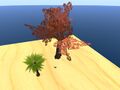 Two trees set to Prim
 -
 Physical shape of trees
 -
 Results in the navmesh


The way to Physics Optimize is to link your complicated builds to a simple shape like a cube or cylinder. The simple shape should be the root prim and then set all child prims to PRIM_PHYSICS_SHAPE_NONE (in Edit > Features > Physics Shape Type)
Manual Instructions
1. Build your object as you normally would
2. Create a simple shape, such as a cube or cylinder
3. Right click on your object, hold down shift and select the simple shape last
4. Press control and L to link it all (the simple shape should now be the root prim highlighted in yellow)
5. Tick edit linked parts
6. Hold down shift and de-select the root prim (the simple shape)
7. Under the edit menu, in the features tab, select physics shape type, and from the drop down menu select, physics type none. This will set all the child prims to none.
8. Select the root prim (the simple shape) and make it transparent.
Using the script below
Or to make it even simpler just follow the above instructions 1 to 4 and then use the handy script attached below. Just drop it in the root prim (The new simple shape you just linked your build to).
 |
Tip: Cubes, spheres, and circular cylinders are the cheapest shapes to use. Up to 14 cubes equates to the same value as one cut hollowed cube. Other shapes, such as pyramids, with no cuts, twists, hollows, or holes, or any shape set to PRIM_PHYSICS_SHAPE_CONVEX give a potentially more accurate (albeit more expensive) result. Any shape that contains holes, cuts, twists, or hollows (such as a torus) fall into the most expensive category. |
Here we linked a tree to a cube and set all child prims to physics shape type None (in Edit > Features > Physics Shape Type):
-
 No physics on trees
 -
 Navmesh sees only cube set to Prim


Collision
When you are physics optimizing you need to plan where you want the collision to be, because all the individual shapes set to physics none will act as though they are phantom. In this example we are using a tree. The actual original tree will be set to physics none and act as though it is phantom so an avatar will be able to walk through it. The root prim, which in this case is a cylinder, will be the only solid part of the whole linked set. By putting the root prim/simple shape around the tree trunk, you simulate a solid and avatars will collide with it.
Here we used a cylinder, but we could have also used a stretched cube to achieve a similar effect.
For more complicated builds you can set certain parts to PRIM_PHYSICS_SHAPE_PRIM and others to PRIM_PHYSICS_SHAPE_NONE. The parts set to prim will act solid, and the parts set to physics shape type none will act as phantom. Alternatively, all prims could be set to PRIM_PHYSICS_SHAPE_CONVEX for a potentially more accurate (albeit more expensive) result. This still produces a physics shape significantly simpler than the default. However, this second option will have no effect on sculpts.
-
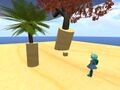 Adding physics
 -
 As seen by physics engine
 -
 As seen by the navmesh


More Examples
- Here is another example scenario. This is a sculpted prim fence. The physics shape is not as clean as it could be, and the edges don't cover all edges of the fence itself. To fix it, I created a cube physics shape, linked the fence to the cube with the cube as the root prim, and set the fence to None. As you can see, the resulting physics shape is lower in polygons and better covers the fence area.
-
 Sculpted fence physics shape
 -
 Adding cube physics shape
 -
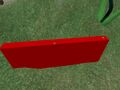 Final Static Object physics shape


- This is a tree comprised of many sculpted pieces. Keep in mind that the physics engine needs to calculate every part of the physics shape in the second picture. Here I created a cylinder for the physics shape to fit on the bottom of the tree trunk. By linking the cylinder to the tree, and setting the tree to physics shape None, I have a much cleaner static object.
-
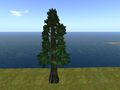 Sculpted Tree
 -
 Un-optimized sculpted tree physics shape
 -
 Adding simplified physics to tree, setting to root
 -
 Final tree physics set to static obstacle


- These gates are nice clean and simple except for the hippo on the top. We can remove the hippo from the physics engine calculations.
-
 Hippo gates
 -
 Hippo physics
 -
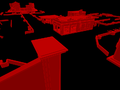 Hippo set to NONE (yes, it's really still there!)


- This entrance has a lot of complicated geometry in one linkset. We only need simple physics here for avatars and pathfinding characters to collide with.
-
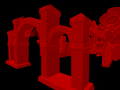 Complicated geometry
 -
 Physics reduced to the minimum necessary


- Streetlamp optimization:
-
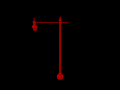 Complicated geometry
 -
 Simplified


Use the following script to set all child prims to None. Be sure to check what physics are needed for your linkset prior to using, and/or add a simple cube as the root prim.
default
{
    state_entry()
    {
        llOwnerSay("Setting all child prims to PRIM_PHYSICS_SHAPE_NONE");
        llSetLinkPrimitiveParamsFast(LINK_ALL_CHILDREN, [PRIM_PHYSICS_SHAPE_TYPE, PRIM_PHYSICS_SHAPE_NONE]);
        llRemoveInventory(llGetScriptName());
    }
}
- For more detailed information, have a look at this Havok Technical Artist Optimization Guide[dead link], a direct excerpt from Havok's documentation. (Havok is the physics and AI engine provider used by Second Life for its physics and pathfinding simulations.) This guide provides details on the best way to optimize your collision shapes and is used by leading artists throughout the games industry.
Debugging Regions With Physics Performance Issues
This section describes how to approach regions with low physics performance.
Determine the source of a performance issue
- Is performance related to any content in the region?
- Does physics performance suffer when certain physical objects are in the region? If so, does it only happen when the objects are in certain areas?
- If so, investigate the #Collision geometry of the physical objects and any objects which they are in proximity to.
- Does physics performance suffer due to scripted content in the region?
- Scripted objects which rapidly change their physical shape can greatly impact performance. In the statistics bar, this is measured under 'Time Details (ms)' -> 'Update Phys Shapes'
- For debugging purposes, an estate manager may pause all running scripts in a region via 'World' -> 'Region / Estate' -> 'Debug' -> 'Disable Scripts'.
- While scripts are running, rapidly updating objects will be highly visible to any viewer when 'Develop' -> 'Show Info' -> 'Show Updates to Objects'. While this display will also show objects which are updating in non-physical ways, it is a good starting point
- Does physics performance suffer due to pathfinding?
- In the statistics bar, pathfinding time can be found under 'Pathfinding' -> 'AI Step Time'
- An estate manager may disable 'dynamic_pathfinding' in the SimConsole, which will disable all dynamic pathfinding actions following a region restart. When this option is disabled, only the static navmesh will exist, and no pathfinding characters will be able to move
- Simplifying the navmesh (as described elsewhere in this page) will greatly improve pathfinding performance in the region.
- Does physics performance suffer when certain physical objects are in the region? If so, does it only happen when the objects are in certain areas?
- Is performance related to any content in the region?
The pathfinding tools allow you to view the physics geometry of objects, which is very helpful for debugging.
- Set the non-moving objects near the collision area (e.g. floor prims and other nearby objects) to either 'static obstacle' or 'walkable' pathfinding types.
- Step-by-step instructions can be found here ).
- If you want pathfinding characters to walk on the objects, use 'walkable'. Otherwise, use 'static obstacle'.
- In general, any non-phantom object which doesn't need to move should be set to one of these types.
- An estate manager may set objects to one of these types using the SimConsole's update-pathfinding-objects command
- Rebake the region
- Open the "Pathfinding view/test" floater, and follow #Identifying and fixing bad physics geometry
- Disable 'show world' to get a clearer view
- Enable either 'walkables' or 'static obstacles' to view your objects
- Check to see if there are any hidden objects which may be contributing to bad collisions
- In the "Pathfinding view/test" floater, enabled "World" and "Movables Only". Disable "Walkables", "Static Obstacles" and so forth. The remaining view should show only movable objects
- Remove any unnecessary movable objects you see.
- Set the remainder of the movable objects to a static pathfinding type, as explained above, then repeat #Identifying and fixing bad physics geometry on them after rebaking the region
- Next, inspect the physics geometry of the physical objects which are generating the collisions
- Temporarily set the vehicle or other physical object to 'static obstacle', then rebake the region. Note that this will prevent the object from moving, and is only useful for debugging purposes
- Repeat #Identifying and fixing bad physics geometry on the normally-physical object. The shape in this case is extra important, since these objects will be involved in many collisions.
- For example, a 'well designed' motorcycle should be represented by a cylinder or sphere for each wheel, and a simple box or two for the chassis.
- Look for other sources of bad collisions
- Even if the physics shapes are individually 'clean', certain arrangements of objects will cause more collisions (and thus more physics time). One typical bad case is having a floor with many solid layers stacked on top of each other. If a physical object collides with such a surface, it will generate collision events with each layer, impacting simulation efficiency and potentially causing strange behaviors. If the cross-section of your floor resembles a gâteau de mille-feuilles, consider changing some of the layers to have no physics shape.
- Piles or other large collections of physical objects will never be good for performance, even if each object is a simple sphere or box.
Identifying and fixing bad physics geometry
Verify that the physics geometry is not too complicated looking:
- For decorative features (i.e. those which don't need to be physically simulated for collisions) there should be no physics shape
- The #Manual_Instructions section describes how to remove fine details from the physics shape
- If an object must be simulated (it's a floor, wall, or other large surface that objects should collide with), simple shapes are best
- Default boxes, cylinders, spheres
- Primitive shapes which are pathcut, hollow, etc. are horrible for physics performance, and do not count as simple shapes
- Cylinders or spheres which lack full symmetry are physically modeled as meshes, which are not performant
- See #More_Examples for details and illustrations
- Default boxes, cylinders, spheres
- If an object must be physically simulated, yet can't be represented by a simple shape, favor convex shapes over mesh-based shapes
- For uploaded mesh objects, it is possible to generate a shape based off several smaller convex hulls using convex decomposition at upload time
- You can set the physics shape type of any prim to to 'convex hull' to make it convex
If an object has been identified as causing physics performance issues in a region (see #Determine the source of a performance issue), there are two options for fixing it:
- If the prims triggering the shape update don't need to be physically simulated, set the physics shape type to 'none' to remove the problem.
- If you lack modify permission on the object, set the physics shape type to 'static obstacle' or 'walkable'. This will prevent the object from changing its physics shape, fixing the performance issue at the expense of preventing visible motion.
- If the prims triggering the shape update do need to be physically simulated (for example, a moving drawbridge), unlinking the movable part from the rest of the build so that there are no shape updates (just moving linksets) will fix the problem.
- In this case, consider using keyframed motion instead of llSetPos or similar. Keyframed motion is more performant and also looks smoother than a sequence of 'stop-motion animation' movements
↩️ Back to Good Building Practices